Here are tips on meeting ADA Title II accessibility requirements, acknowledging the stress of the April 24 deadline while sharing practical strategies for designing more inclusive course content.
Photo by Daniel Ali on Unsplash
I love watching TV shows and movies with subtitles.It started when our current first-grader was born over seven years ago. During those long nights nursing him, I came to appreciate being able to watch my favorite shows or movies with the sound off. I mean, who wants to disturb a sleeping baby?
Even now, when I watch something with the volume on, I benefit from having the closed captions on, especially when watching some of my favorite Scottish crime shows! I didn’t realize it at the time, but this small accommodation opened the door to how I now think about accessibility in my teaching.
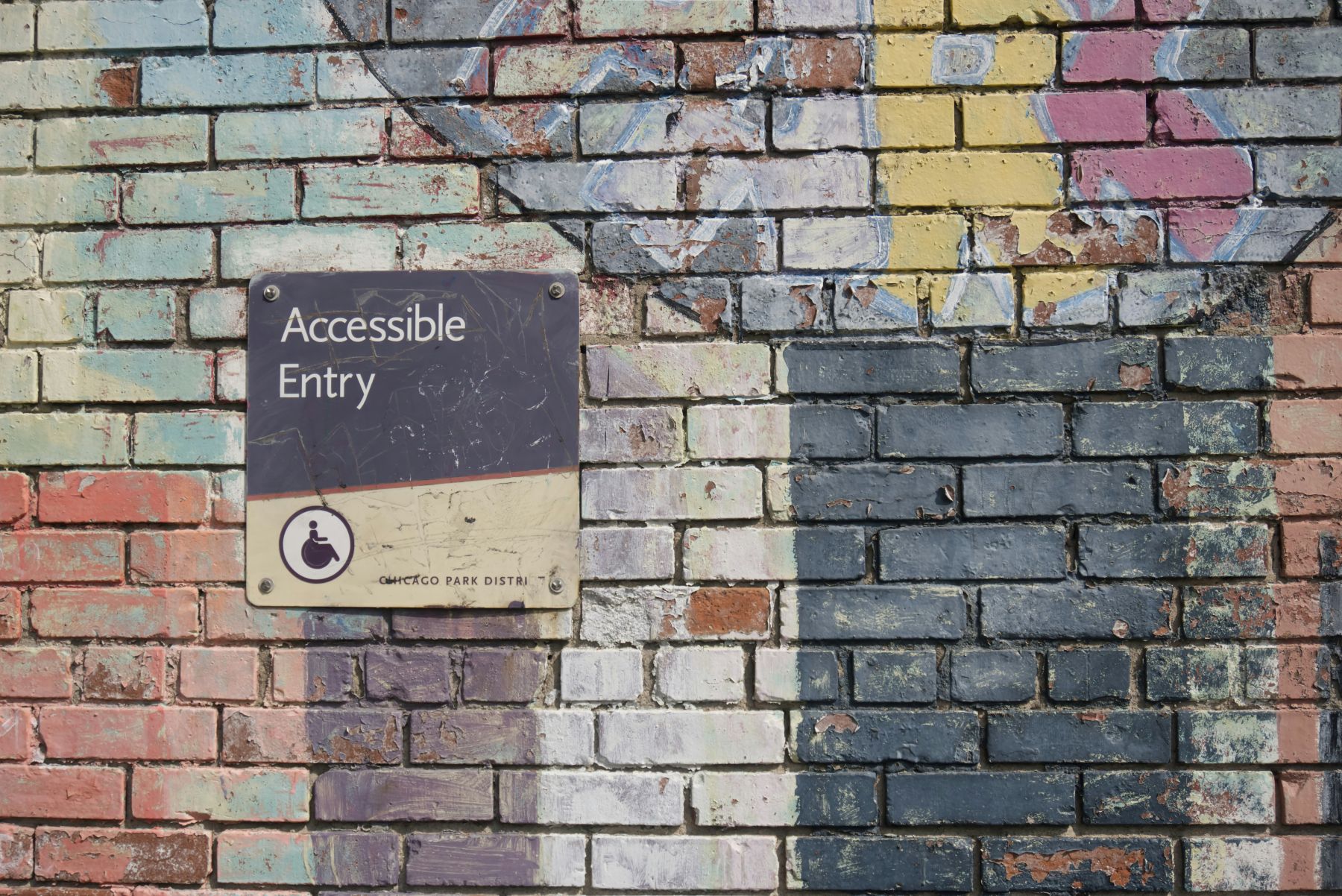
I have since learned that this is called the “curb cut effect”: When built or digital environments are designed accessibly for both people with and without disabilities — such as the curbs of sidewalks being cut down for individuals using wheelchairs — there’s a “spillover” effect, meaning that others (for example, a parent pushing a stroller or a cyclist crossing the street) benefit from the curb being lowered.
Why This Matters Now — and Why It Feels Hard to Do
This is the spirit of Title II of the Americans with Disabilities (ADA) act: making everything accessible for the broadest groups of learners from the get-go, not just when an individual needs accommodations to access digital content.
Starting April 24, all of us who work at the University of Maryland, Baltimore (UMB) will be legally responsible for creating digital content that meets the WCAG (Web Content Accessibility Guidelines) 2.1 AA requirements.
Knowing this doesn’t make the work feel any less overwhelming — especially with a deadline only a few weeks away. I get it. It seems daunting to suddenly have to recreate course content by this tight deadline.
When I feel overwhelmed with this, I try to remember that accessibility work redistributes labor, from students having to navigate barriers to instructors designing more thoughtfully from the start.
Using a screen reader for even a few minutes changed how I think about my own course materials, especially how much meaning is reflected in headings and links. I also realized how much we communicate with visuals, and when that content isn’t explained to those who cannot view it, meaning and context can be distorted or lost completely.
Reframing Accessibility: From Compliance to Pedagogy
Designing accessible course materials is a lifelong learning process, and we can learn from each other and our students. For example, one student asked me to add a “Deadlines” section to each of my eight course modules so she could see the deadlines for that week in each module description in chronological order.
Granted, each assignment and activity listed in each module already included the deadlines, but they were not in chronological order. It took me all of 20 minutes to change that for all eight course modules. That small change improved clarity for everyone, and it’s now part of how I design every course.
What to Prioritize Right Now: Concrete, Doable Steps
The good news about WCAG 2.1 AA is this: There are a ton of resources for faculty on the internet that provide guidance and instructions on how to ensure that your digital course materials meet the WCAG 2.1 AA standards (including UMB’s excellent Digital Accessibility website). But this is also bad news, because it can be confusing to sift through all that content.
So, where to begin? If you’re feeling overwhelmed, start with the elements that most affect navigation and comprehension.
Improve Navigation
When learners use screen readers or other assistive technologies, they need materials that are logically organized and effectively labeled. I have found that by paying attention to the following two things, the accessibility of my course website and documents dramatically improves.
Headings
In Microsoft Word, as well as in Blackboard course modules or assignments, pre-structured headings already exist. All I need to do is make sure that I label headings in a logical order (for example, making sure that heading 3 follows a heading 2, and so on).
Embedded Links
Links that say “click here” or “this link” are not very meaningful. Instead of saying “Click here to access the American Academy of Arts & Sciences’ Annual Report,” I now write phrases like this: “The American Academy of Arts & Sciences’ Annual Report complements this week’s readings.”
Enhance Comprehension
Alternate versions of content greatly improve comprehension, not just for learners using assistive technologies, but for all learners. And, surprisingly, these tasks have easily become a part of my process.
Alternative (Alt) Text
When we tag an image or a table or any other visual materials with meaningful alt text, we increase the access to our content for all learners. I also find that the practice of creating alt text clarifies to me why I use certain visuals, and that has enriched the way I even write the text accompanying visuals. Notably, not every visual item needs alt text. We always can label images as “decorative” when that is their sole purpose.
Edited Captions
Auto-generated captions on YouTube videos or on Clipchamp, a Microsoft-owned tool for video recording and editing that I use a lot, have come a long way this past year.
Still, we must always review, and likely edit, self-generated captions. Unlike subtitles, captions also must indicate any background noise or moments when there is laughter or applause, for example.
As I continue to grow my skill set in creating compliant video content, I make sure that I build in time to edit my captions right away. It is always easier for me to do that when it’s fresh.
For older videos that I am remediating, I use either YouTube Studio or Clipchamp to edit already existing captions to ensure accuracy and compliance. This can take time, but having accurate captions also makes it so much easier to create a separate transcript document. (This is not required, but certainly recommended in terms of accessible course design based on universal design for learning.)
Including Information Visible on the Screen
Remind yourself to include a verbal description of anything you are showing on-screen when recording. This will prevent you from having to add audio descriptions to any videos you are creating. I find that this practice has actually helped me go through my slides much more effectively.
For the record, remediating videos where I didn’t do that and where I had to create additional material (usually an accessible transcript) has been one of the most time-intensive endeavors. I many cases, I actually decided to re-record rather than remediate.
Format Choices and Workflow
I have found it helpful to approach my course content by thinking about the most common genres or types of course documents and checking those for accessibility.
Start with the Syllabus
When I review the syllabus of a class I am teaching (or creating a new one), I follow these steps:
- Keep the accessibility checker in Word on while working in the document
- Check logical heading structure (having the navigation pane enabled is super helpful)
- Check for meaningful embedded links
- Check any tables I am using (the accessibility checker will flag anything that looks “wonky”)
Blackboard Items
This includes module descriptions, assignment texts, discussion board entries, etc. Blackboard Ally is really helpful with this.
I check for things similar to what I check for in my syllabus:
- Check logical heading structure (having the navigation pane enabled is super helpful)
- Check for meaningful embedded links
- Check any tables I am using (the accessibility checker here will flag anything that looks wonky)
- Ensure that images, visuals, etc., have alt text or are marked as decorative
Course Documents
PowerPoints are easily remediated because the built-in accessibility checker really helps in identifying what needs to be changed.
For materials I create myself, I now make a deliberate choice to upload Word documents rather than PDFs whenever possible. I find that replacing image-based or scanned PDFs with Word or HTML documents, wherever possible, makes for the most accessible content.
I also have learned to be strategic about including PDFs. AdobePro and the tool available via UMB called Equidox are very useful to remediate PDFs, but there is a learning curve on how to use either of these programs, and it can be time-intensive.
For journal articles, I provide HTML versions of articles when possible. I also have worked with the supportive Health Sciences and Human Services Library faculty to make files (like book chapters) that I am requesting through the interlibrary loan service (such as chapters) accessible.
Website
I ask students to read a lot of blogs and other open-access material on the internet. The Silktide browser extension can help in determining how accessible a website is based on WCAG 2.1 AA guidelines, but there is a bit of a learning curve to understanding how the tool works. It has a built-in accessibility checker, but more often I use features — such as color contrast, alt text, or headings — to determine how navigable the website is for someone using a screen reader.
I actually start by creating Word documents with the content of the page that I want students to access by copying and pasting the content, and then revising the Word document based on accessibility guidelines. This is a great alternative, not only for those using screen readers, but also for learners who might not have reliable internet access. They can download the files and complete the readings offline.
Videos
The guidelines for videos on the UMB Digital Accessibility website are phenomenal and provide great examples and context around making videos accessible.
If I really want students to watch a video that has not been accessibly designed (and I didn’t create it), I have at times created an accessible transcript. Depending on the length of the video, this can be a time‑intensive process. As WCAG 2.2 AA standards become more widely used, I am hopeful that a lot of content on the web will be designed to be accessible, requiring no remediation on our part.
Accessibility as Ongoing Practice and Community Learning
Accessibility work can feel isolating, but it doesn’t have to be.
To close, creating accessible course material is something I have been embracing and implementing in my routine. I acknowledge that it can be a time-consuming endeavor, and there is a learning curve. But keep in mind that there are a lot of university and public resources available to help us all be successful.
Some options are participating in faculty fellowships with the National Federation of the Blind and Teach Access. Closer to home, UMB offers support and resources from the University System of Maryland William E. Kirwan Center for Academic Innovation’s Boosting Course Accessibility mini-grant program. As a recipient of this mini-grant in 2025, I created a poster presentation to document a few small changes I made that helped me rethink assumptions I didn’t realize I had made. I encourage colleagues to seek out these kinds of opportunities when they can.
About the Author
Isabell Cserno May, PhD, is an associate professor at the University of Maryland School of Graduate Studies, where she directs and teaches in the Science Communication certificate program. May also directs the UMB Writing Center and is the project lead on the National Institute on Aging-funded program for early-career researchers.